Before you start
- A clip. An MP4 or MOV from your phone, a Hudl download, a broadcast replay or a screen recording. A side view with the whole body in frame gives the best angles.
- The distances. Yard lines, cones or lane markings you can see in the clip. Every speed number comes from distance and time.
- The athlete’s weight. Force and momentum are scaled to bodyweight.
- The clip speed. If it’s a slow-motion replay, know (or estimate) how much it’s slowed down.
Your video stays on your device. Elytics only sends a cropped still of the athlete to Roboflow when you measure the pose.
Load a clip
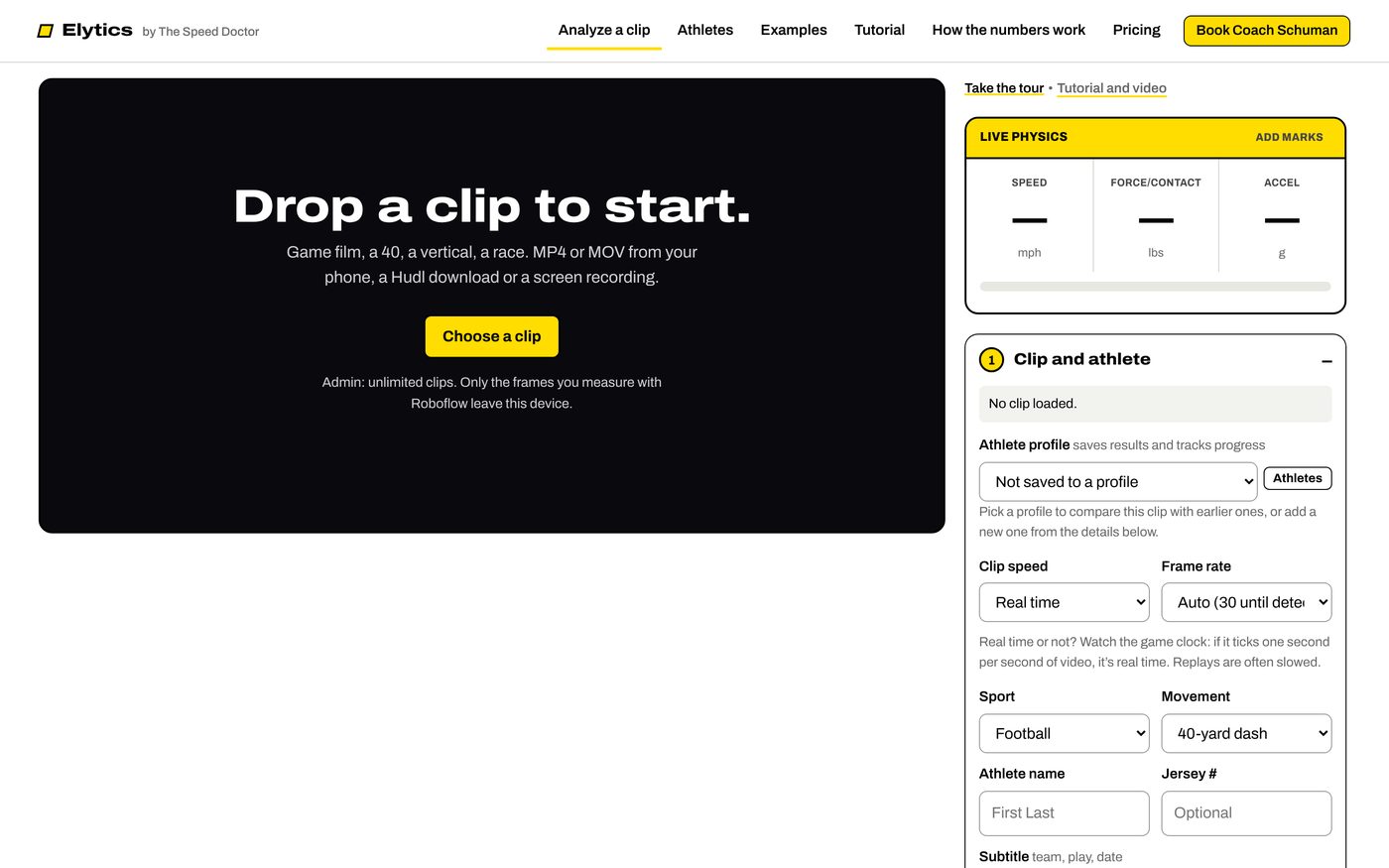
Open Analyze a clip and drop the video on the player, or tap to choose it. It plays right in the page, frame by frame.
1. Clip and athlete
Pick the athlete’s profile (or add one), then the sport and the movement: a 40, a QB scramble, a first step, a vertical, home to first, an approach jump and more. The movement sets which moments you’ll mark and which rules check the angles.
Enter the name, a subtitle for the video and the weight. Under Known numbers you can add a hand-timed 40 or an official top speed (Next Gen Stats, for example). Only enter a number you can source; it replaces the estimate and is labeled MEASURED.
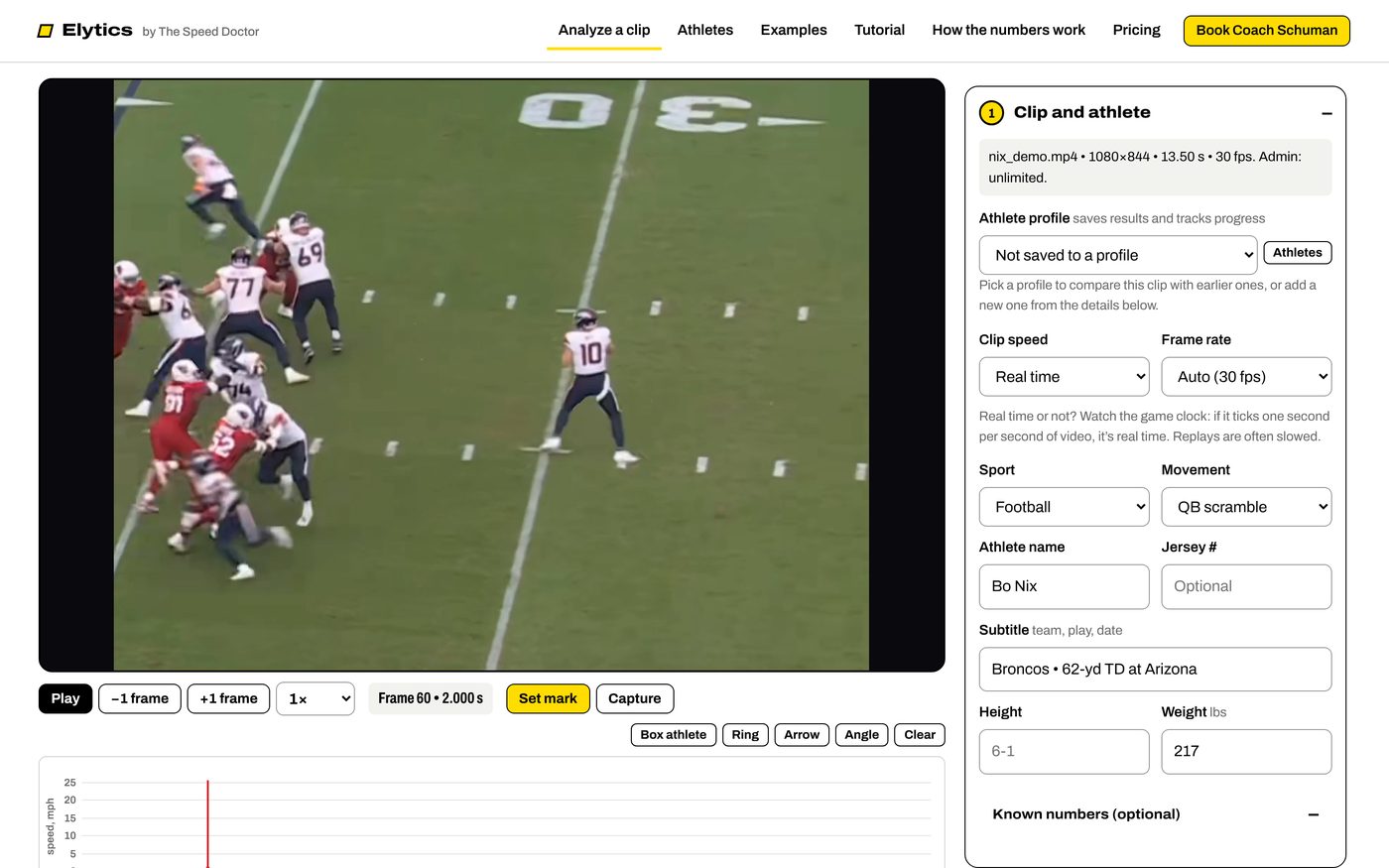
Slow motion: set Clip speed so the physics run in real time. A 2× slow-mo replay means each real second takes two seconds of video.
2. Mark the timing
Step through the clip with the arrow keys (hold Shift to jump ten frames) and press M at each moment the movement asks for: first movement, each yard line, the cut, the takeoff, the finish. Type the distance at each mark. The speed curve, splits and force per step build from these marks.
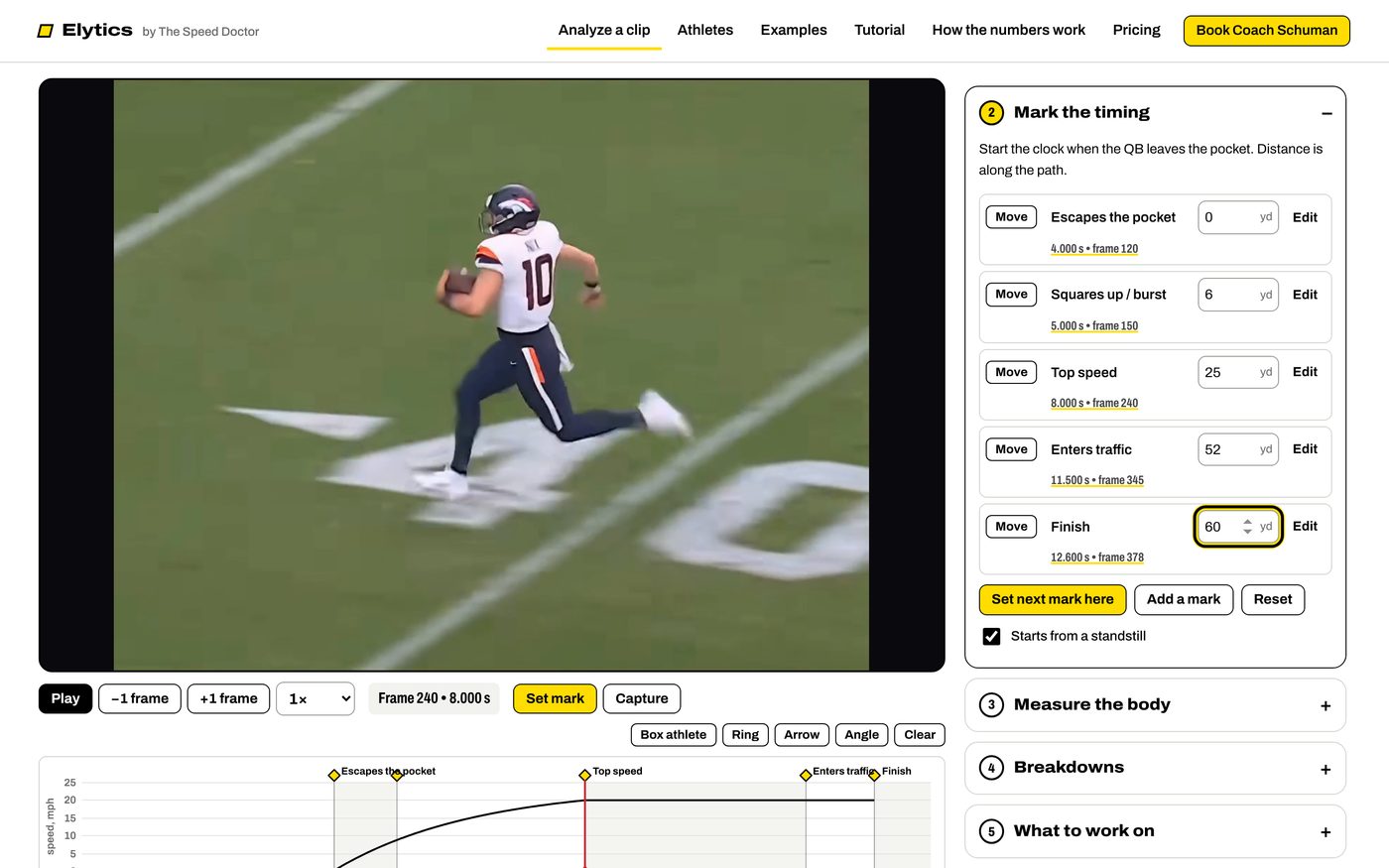
Accuracy: each mark is only as good as the frame you pick. Mark where the body crosses the line, not the ball, and keep the camera angle in mind on broadcast footage.
3. Measure the body
Go to a frame that matters, tap Box the athlete and drag a box around them, then Measure pose at this frame (or press P). Roboflow’s YOLOv8x pose model reads 17 joints and Elytics draws the trunk lean, both knee angles and the thigh split. Each clip includes 10 Roboflow reads; after that, pose runs on your device.
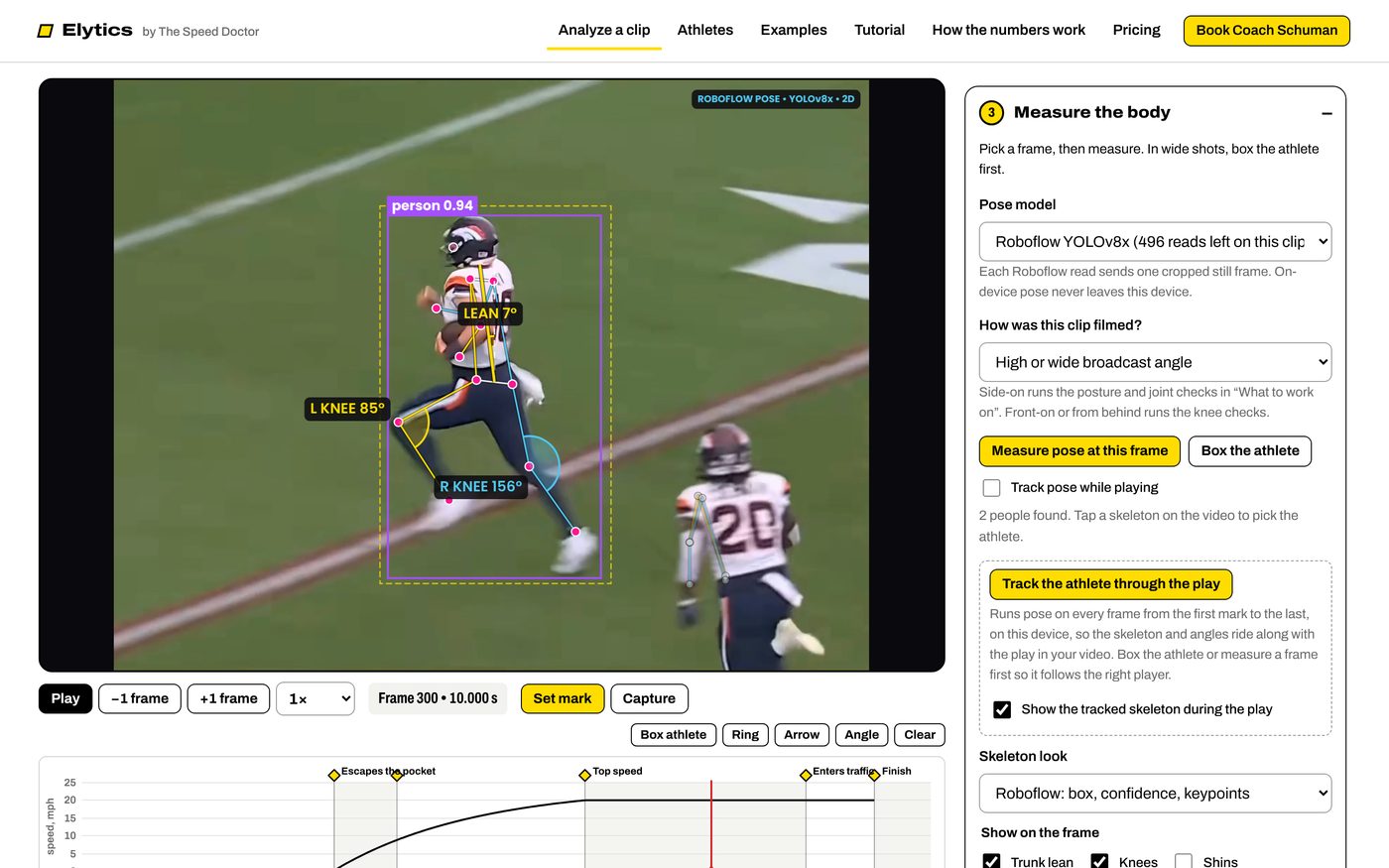
Answer How was this clip filmed? so the rules know what they can trust: a side view for lean and knee angles, a front view for knees caving in. If two people are found, tap the right skeleton. Skeleton look switches between the Roboflow keypoint style and plain lines.
Track the athlete
Press Track the athlete through the play and Elytics follows them through the marked part of the play, so the skeleton and the angles ride along in the video instead of appearing only on freeze frames. Tracking runs on your device and takes a minute or two on a long play.
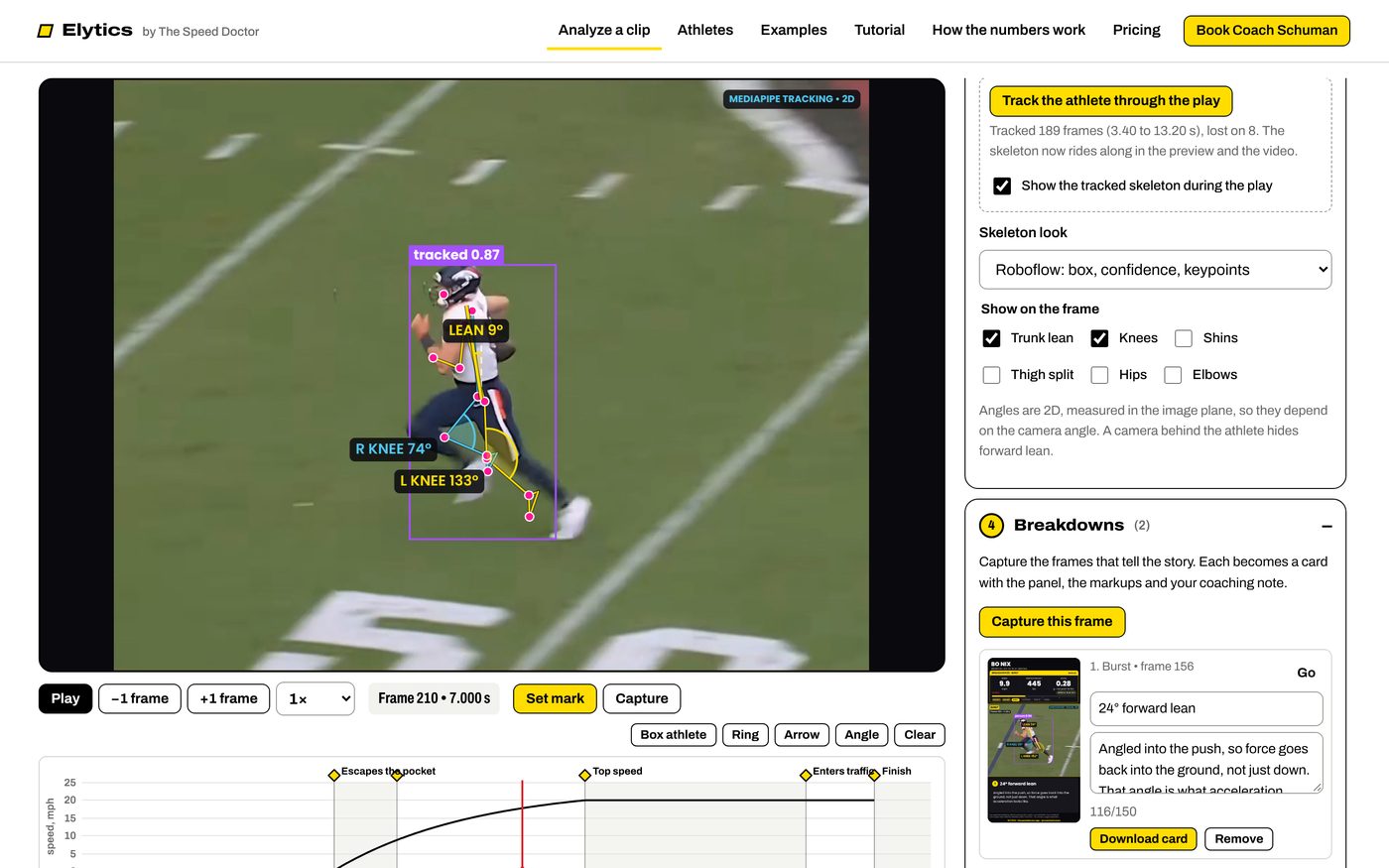
4. Breakdowns
On each frame that tells the story (the start, top speed, the cut, the landing) press C. Each one becomes a freeze-frame breakdown card with the angles, the speed at that moment and your coaching note. Use the Ring, Arrow and Angle tools to mark anything the pose doesn’t cover.
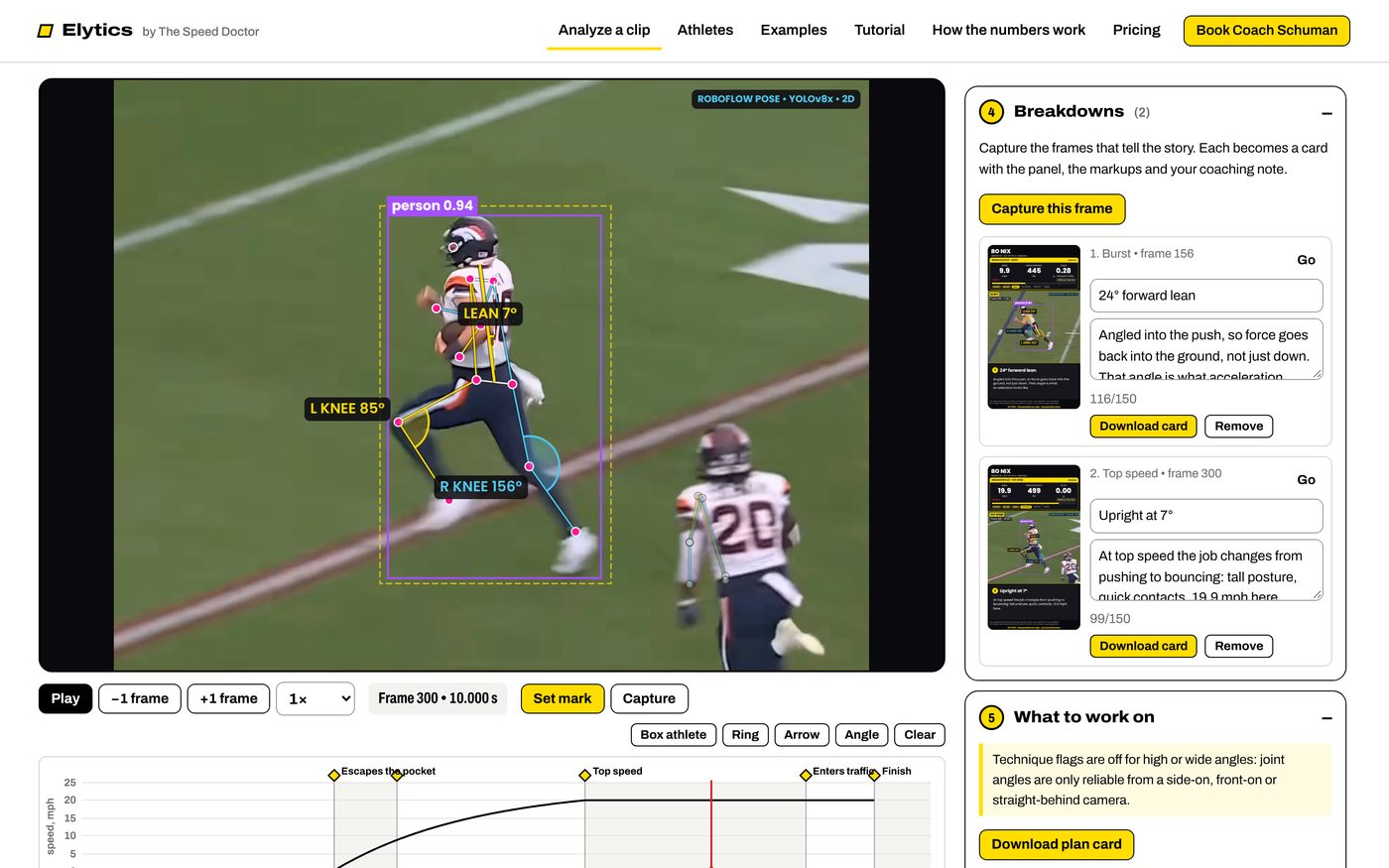
5. What to work on
Elytics checks the angles and the timing against the rules for that movement and flags what it sees: Fix, Check or Working, each with the frame it came from and drills to start with. When the clip is saved to a profile, the next clip shows progress, flags that keep coming back and the ones you’ve fixed. See every rule and threshold.
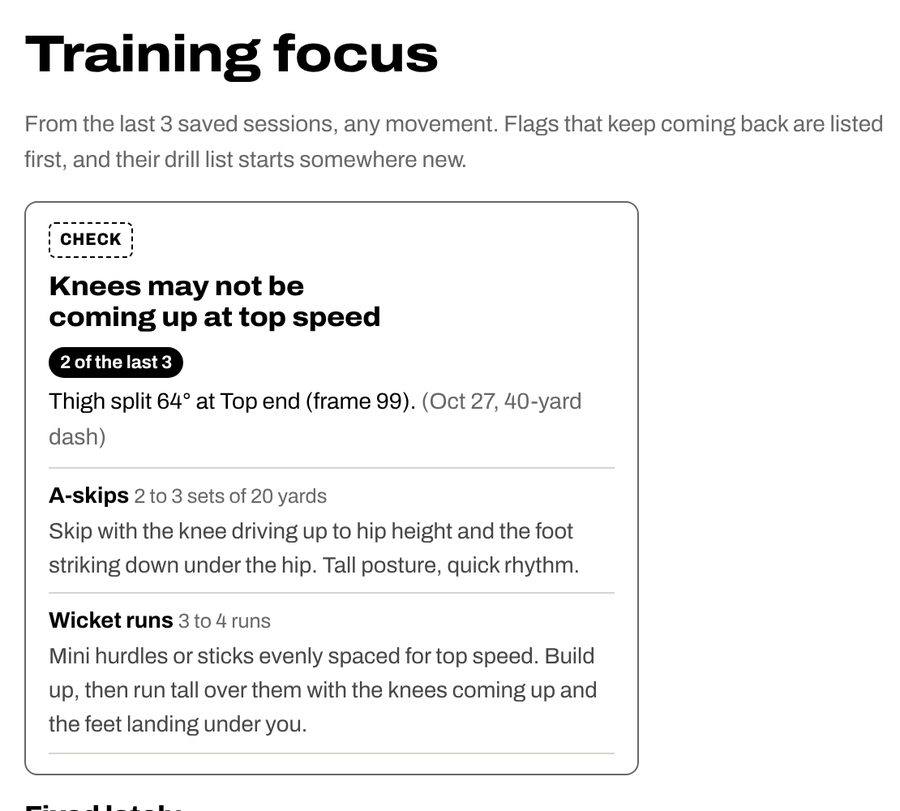
6. Save, voice and export
Save to the profile with the date and a note. Voiceover: pick Coach Dave’s voice, which reads a script Elytics writes from your numbers, or another voice whose script you can edit. The first voiceover on each clip is included; re-recording uses one clip credit. Render the vertical video with the play, the breakdowns and the numbers panel, plus the cards as images.
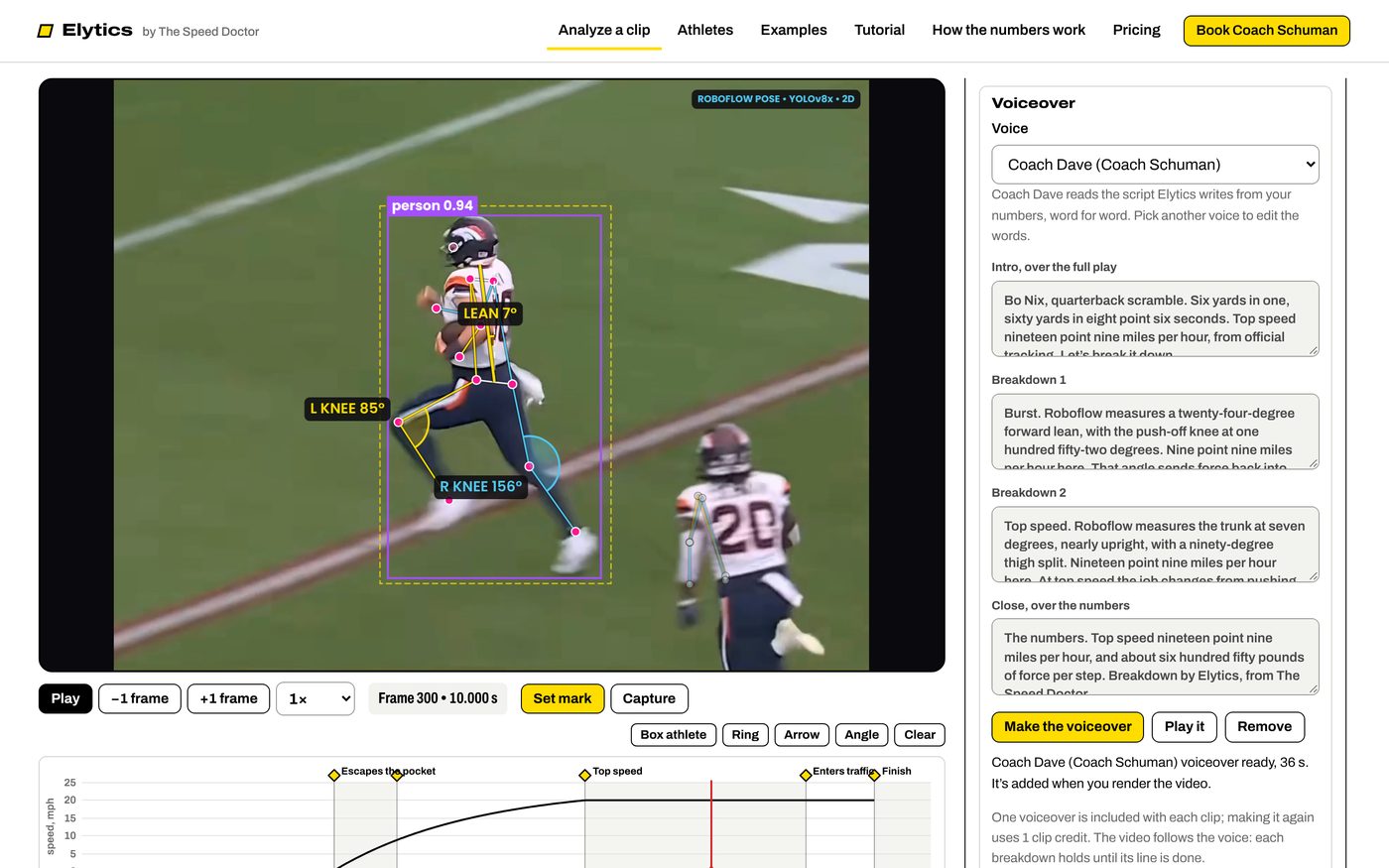
Want Coach Schuman’s eyes on it? Send to Coach Schuman shares the numbers with him for a done-for-you breakdown. Book a breakdown.
Athlete profiles
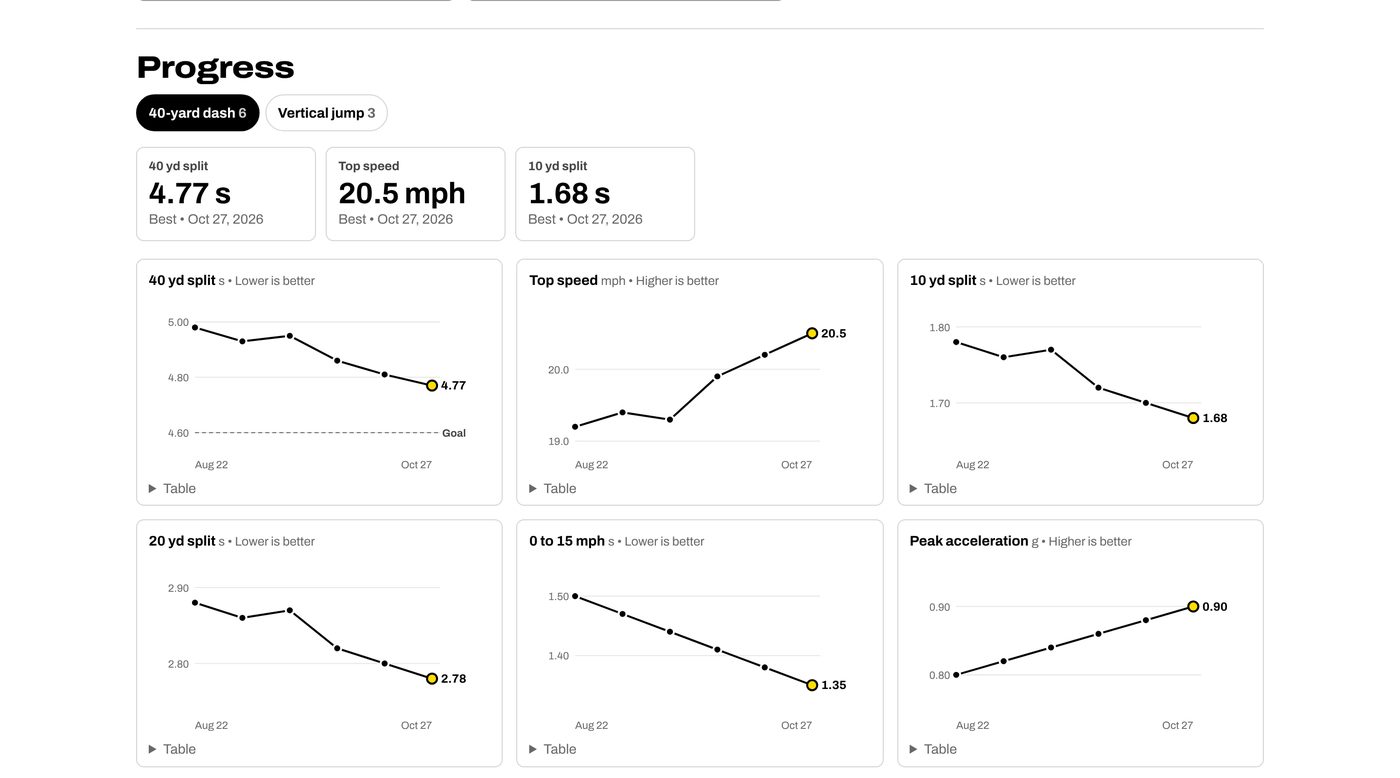
Every clip you save builds the athlete’s profile: personal bests, progress charts for each movement, goals you set, the training focus and the flags that keep coming back. Export it as CSV or JSON any time.
Keyboard shortcuts
| Key | What it does |
|---|---|
| Space | Play or pause |
| ← → | Back or forward one frame |
| Shift + ← → | Back or forward ten frames |
| M | Set the next timing mark here |
| P | Measure pose at this frame |
| C | Capture this frame as a breakdown |
| Esc | Cancel the drawing tool |
On a phone or tablet, use the buttons under the player instead.
If something looks off
- The skeleton is on the wrong player.
- Tap the right skeleton on the video. If the athlete wasn’t found, draw a tighter box and measure again, or pick a frame where they’re clearer.
- Top speed looks too high or too low.
- Check the first mark and the distances, then the clip speed. Elytics adds a “Check your first mark” flag when the speed curve isn’t realistic.
- The angles seem wrong.
- Angles are 2D, read off the picture. They’re accurate from a side view and less so when the athlete runs toward or away from the camera. Answer how the clip was filmed so the rules skip what the view can’t show.
- Tracking is slow.
- It runs on your device. Shorten the marked part of the play or use a laptop instead of a phone.
- The voiceover says it won’t be used.
- The script is written from your breakdowns, so changing them after recording makes it out of date. Make it again to match; re-recording uses one clip credit.
Ready for your first clip?
Membership includes 15 clips every month. Grand opening: join by November 30 and keep $9.99 a month for life. After that, new memberships are $29.99 a month.